
Articles
Article Archives
Article Categories
- Webinars
- Newsletters
- From the Board of Directors
- Technology Focus
- Career Focus
- Data Focus
- Tech Tips
- Security Focus
- Social Media Focus
- Accessibility
- Data
- Design
- Security
- Social Media
- Analytics
- Search
- Member Focus
- Conference
- Accessibility Focus
- User Experience
- Marketing/Email
- Version Control
- Open Source Tools
- Writing
- Artificial Intelligence
- GIS
- Redesign
- SEO
- All Current Articles
Maximize what you can Analyze
NAGW Navigator: Volume 1 • Issue 4 • Summer 2018
by Olivia Davis
What you want
Google Analytics offers great information about how visitors use your website. These insights include page visits, times of page hits, devices visitors use and many others.
However, let’s say you want more. Which documents do visitors download? How often do they complete forms? How long do they watch videos? You need Google Tag Manager.
How to make it happen
Google Tag Manager integrates with Google Analytics to display data from events like document downloads, form completions and video plays in one location. You need to follow a few additional steps to get started with Google Tag Manager.

What you need
- Google Analytics implemented on your site (have the tracking ID on hand)
- Access to the section of every page on your site*
- Access to the section of every page on your site*
* You can usually find both sections in your site template(s).
What to do
Install Google Tag Manager
- Go to Google Tag Manager.
- Follow instructions to create an account.
- Using the vertical ellipses in the top right corner, select Create Container and follow instructions.
- Enter the given code snippets in the appropriate sections of your site.
Connect to Google Analytics
- Once inside your Google Tag Manager container, select Variables on the left.
- Scroll to the bottom to create a new user-defined variable.

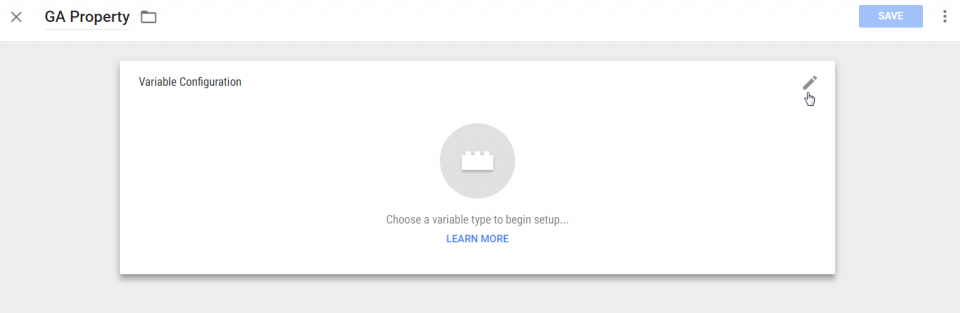
- Name the variable GA Property.
- Click on the Variable Configuration box to edit.

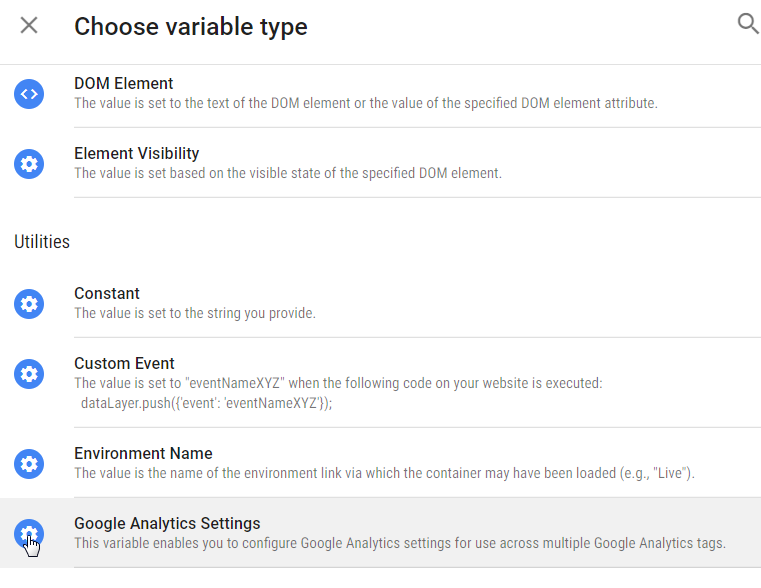
- Under Choose variable type > Utilities, select Google Analytics Settings.
- Enter your Google Analytics tracking ID.

- Click Save.
Explore!
Use resources like the Google Tag Manager handout to learn more about how you can leverage Google Tag Manager.
